Reconciliation
Bank reconciliation in general#
With bank reconciliation, you can reconcile bank accounts on the go and keep them correct. No automatic matching takes place, with the exception that transactions due to payments on claims are automatically matched with invoices.
Retrieve transactions from the bank#
Transactions can be retrieved into the system in two ways, either automatically or manually:
Automatically with a bank connection: When the bank is connected (see: Bank connection and claim creation), you need to click once on Retrieve transactions under the three dots next to the bank account. After that, transactions are read in automatically. Transactions are retrieved from the start date of the accounting, which is configured under Settings > Company > Accounting.
From Excel: Click on the three dots next to the bank account and select Upload file, or drag the file directly into the box. The Excel file can be accessed in the bank with the bank transactions.
Bank vs Payday#
When the bank reconciliation is opened and transactions have been read in, two columns are visible. On the left side are transactions from the bank and on the right side are transactions from Payday. Transactions from the bank must be matched with transactions from Payday. If there is no transaction to match with, a new transaction can be entered in the right column. Below, a payment of previously registered expenses and a slip fee have been selected together. To match the transactions, the green checkmark in the middle is selected.

Matching#
When matching transactions from the bank and previously posted transactions in the system, you can select four categories of transactions:
| Category | What appears | What happens during matching |
|---|---|---|
| Invoices | Sales invoices that have been created | Payment is posted if the invoice is unpaid and the invoice becomes Paid if the remaining balance is 0 ISK. |
| Expenses | Expenses registered on the expenses page | Payment is posted and the expenses become Paid |
| Payroll | Transactions from payroll runs | Payment of payroll-related taxes and contributions is posted; the system suggests matching |
| Other | All transactions that have been posted to the bank account | Offset against each other, no new posting |
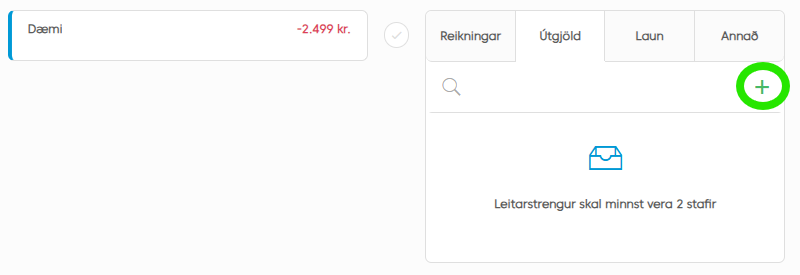
If an invoice or expenses do not exist, you can create them using the + icon next to the search box.
Only payments on claims are automatically matched with invoices.
Further explanations:#
- Invoices: Here, all sales invoices that have been issued in the system and have not been matched in bank reconciliation appear. When an unpaid invoice is selected in the list, a payment is posted on the invoice and it gets the status Paid if the remaining balance is 0 ISK. If a paid invoice is selected, the payment has already been posted and that payment is offset against the bank transaction, but no posting takes place. If the invoice has not been created yet, it can be done here by clicking on the + icon to the right of the search box, and an invoice will be created along with a payment that appears under Invoices.
- Expenses: Here, all expenses that have been registered through the expenses page and have not been matched in bank reconciliation appear. When unpaid expenses are selected in the list, a payment is posted on the expenses and they get the status Paid. If paid expenses are selected, the payment has already been posted and that payment is offset against the bank transaction, but no posting takes place. If the expenses have not been created yet, it can be done here by clicking on the + icon to the right of the search box, and expenses will be created along with a payment that appears under Expenses.
- Payroll: Here, all transactions created during payroll runs in the system that have not been matched in bank reconciliation appear. When a transaction in the list is selected, a payment is posted on these payroll-related taxes and contributions. The system suggests a match that the user needs to confirm. If transactions are missing, you can search for "Payroll" in the payroll tab and the transactions should appear.
- Other: Here, all transactions that have been posted to the bank account (i.e. transaction list) being reconciled and have not been matched in bank reconciliation appear. When a transaction in the list is selected, it is offset against the bank transaction and no posting takes place. If the transaction has not been posted yet, you can click on the green + icon next to the search box to register a new transaction.
Unreconciled transactions#
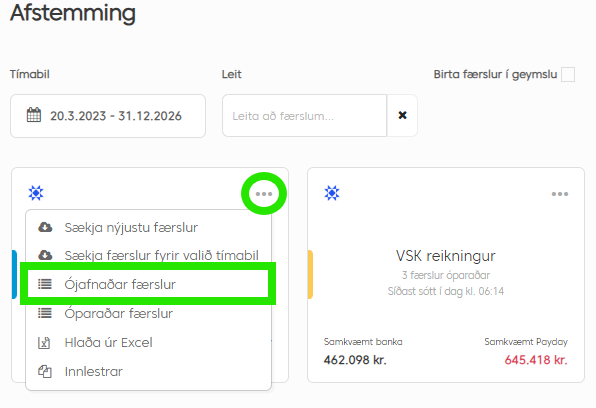
You can see unreconciled transactions in Payday for each bank account by clicking on the three dots next to the bank account and "Unreconciled transactions".
The main reasons why transactions are unreconciled are:
- The transaction has not been matched with a transaction in reconciliation
- The same transaction has been entered more than once
- The transaction is not posted to the correct bank account
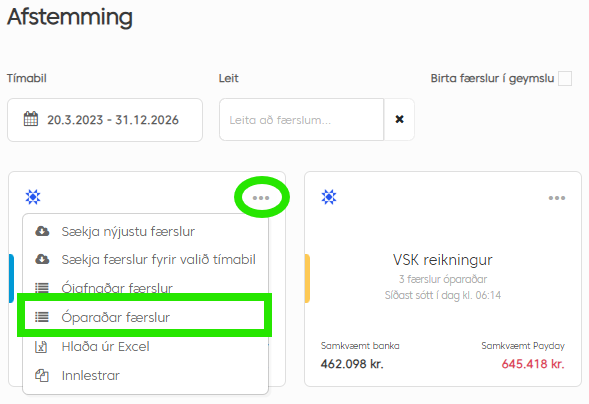
Unmatched transactions#
Here you can access a list of transactions that remain to be matched.
#
Special cases#
- Transfer between own accounts
- Payment to credit card
- Payment from card companies
- Credit card reconciliation
- Reconciliation of journal entries
- Common actions in reconciliation
- Bank account does not reconcile, what to do?
Tutorial video
Here you can find a short tutorial video on how the reconciliation works: Tutorial video