How do I pay myself salary?
In this article, we will go over how you can create a payroll run, pay salaries, and send returns to the tax authorities, pension funds, and labor unions.
Create a payroll run#
Click on Laun > Ný launakeyrsla.
A payroll run with all active employees opens.
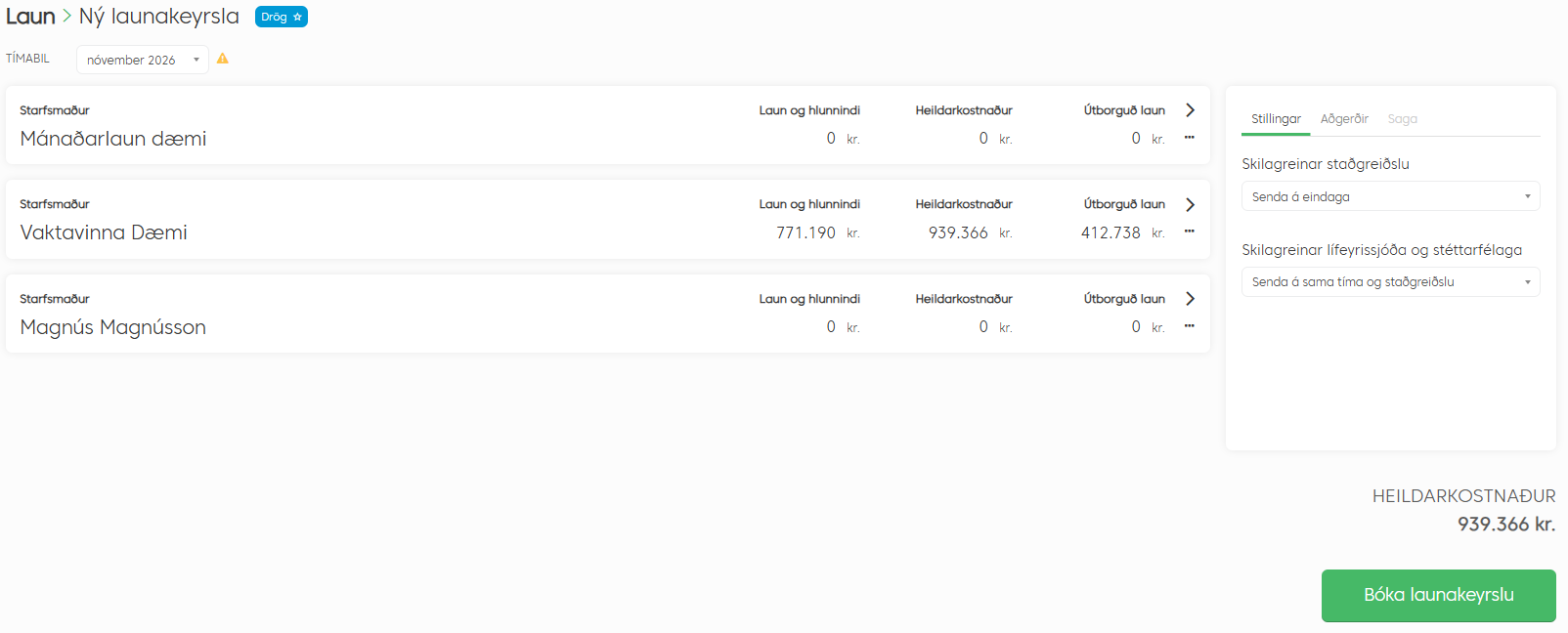
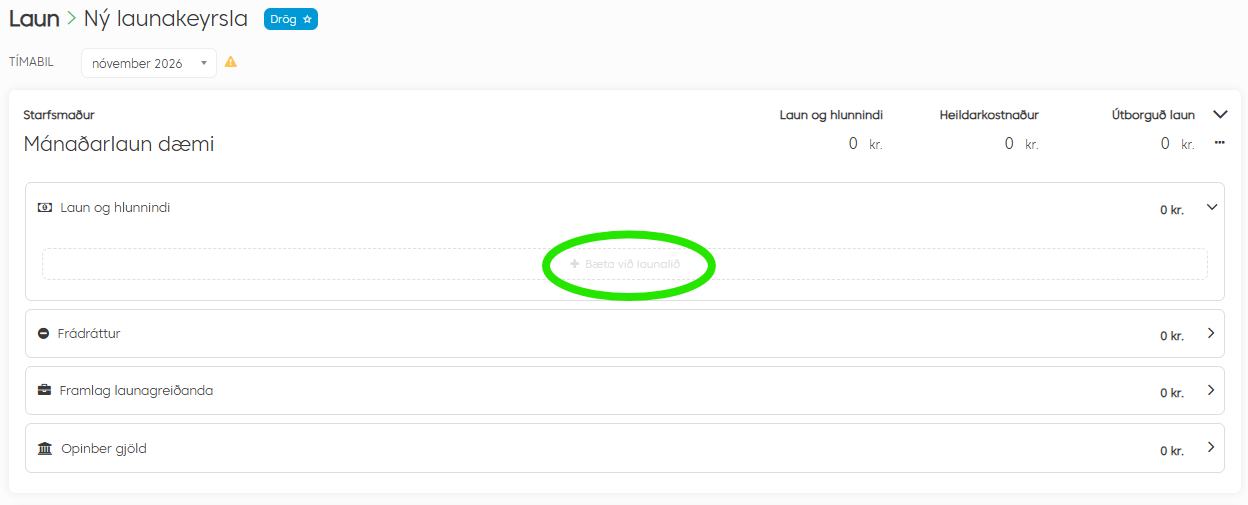
Click on the employee to whom salary should be added.
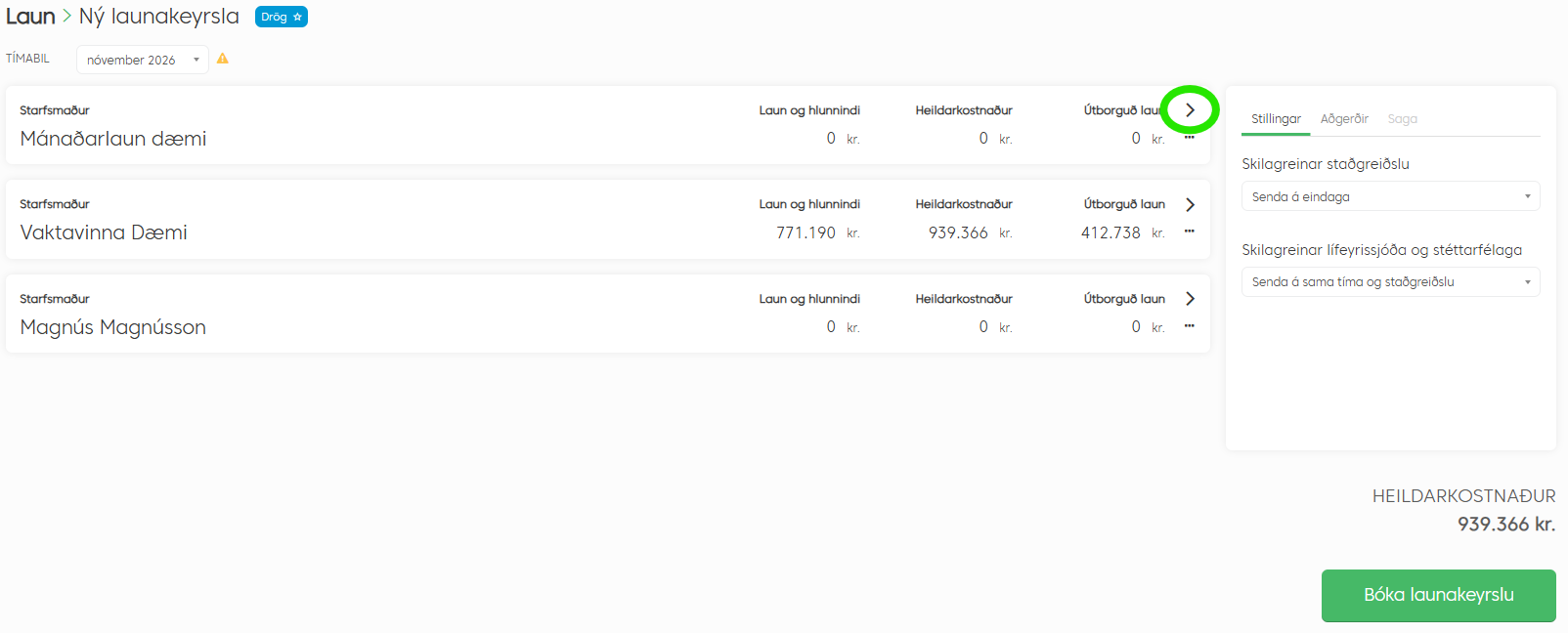
Then click on laun og hlunnindi.
Click on Bæta við launalið.
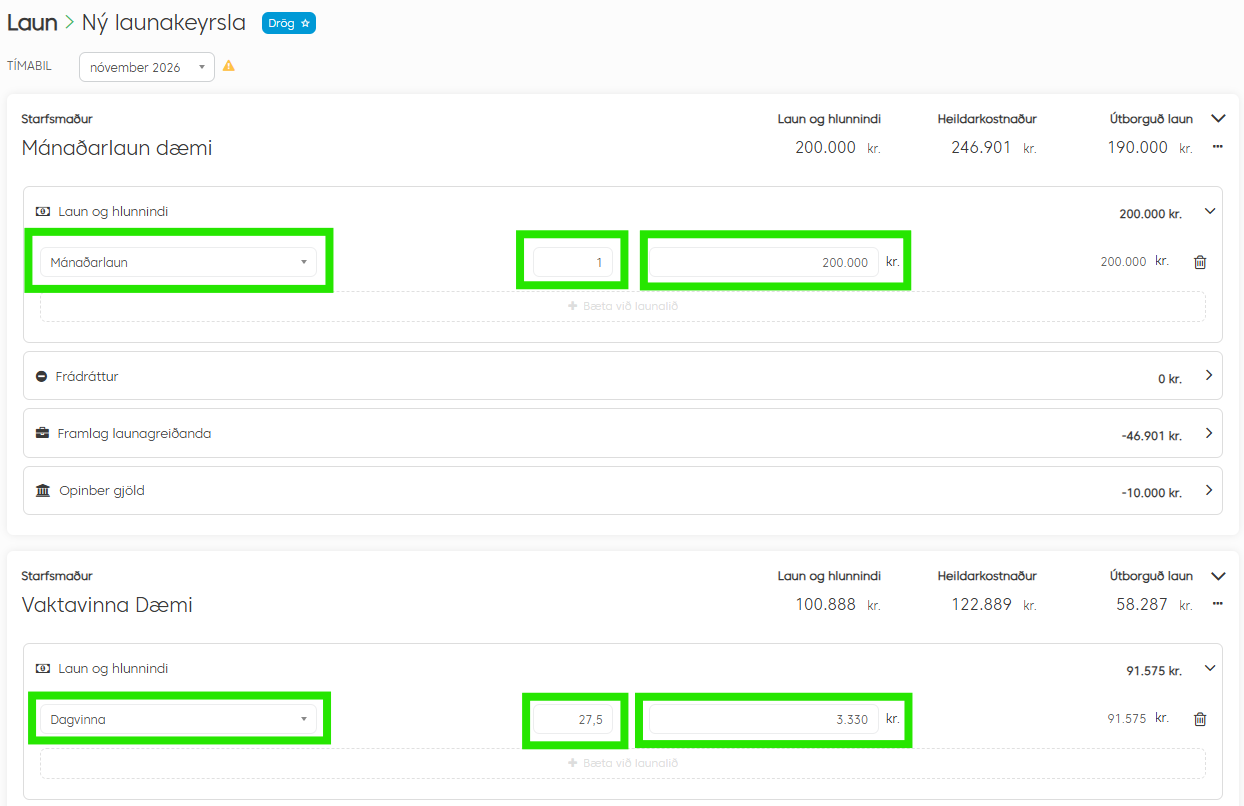
Select the relevant salary item and enter the quantity (whether it is hours or 1 for total salary) and amount.
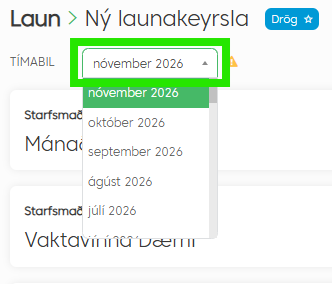
Make sure the period is correctly selected.
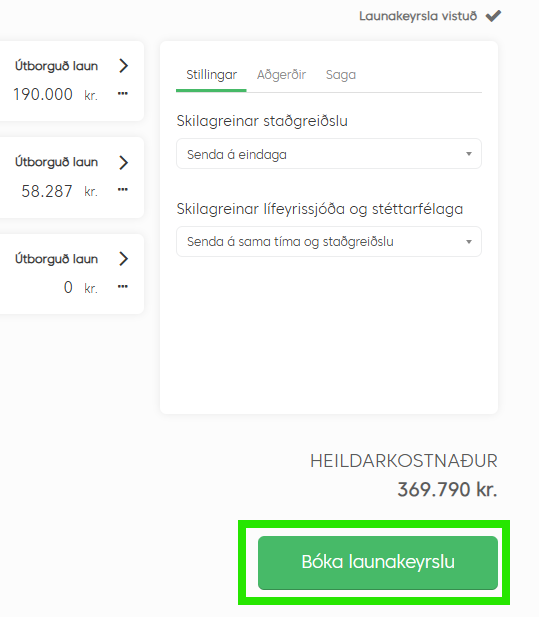
Choose when you want to send returns under settings in the payroll run.
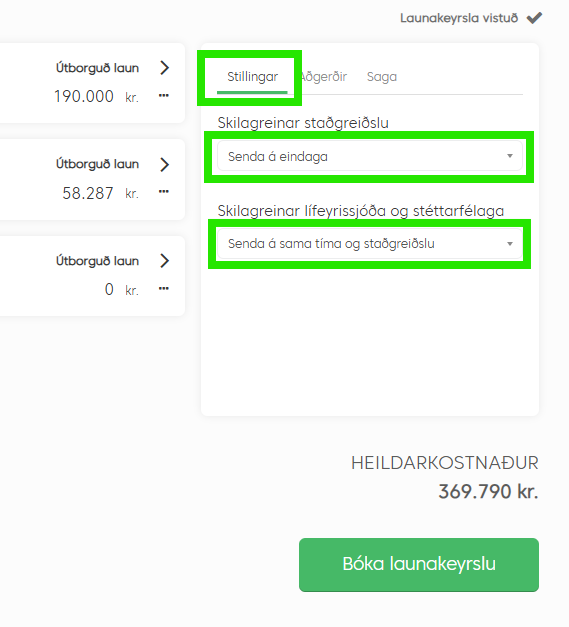
If all information is correct, you can book the payroll run.
Payment batches#
Payday does not transfer salaries automatically, but you can have a payment batch created for salary transfers that needs to be confirmed in online banking, and then the salaries are transferred. A bank connection must be active so that a payment batch can be created in online banking, see here: Bank connection
Go to Stillingar > Fyrirtæki > Banki.
Check "Stofna greiðslubunka fyrir millifærslu launa" and select a withdrawal account.
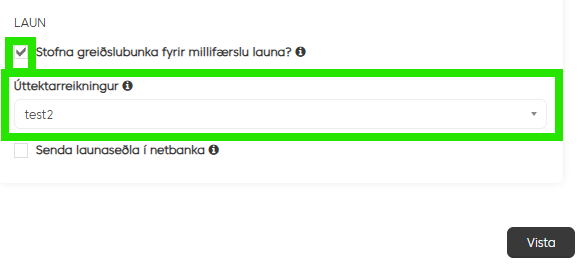
If this setting is not selected, salaries must be transferred manually
Where do I find payment batches in online banking?
Bank | Path in online banking |
|---|---|
Íslandsbanki | Greiðslur > Greiðsluskrár > Yfirlit |
Landsbankinn | Forsíða > Vinnuborð |
Arion banki | Greiðslubunkar > Bunkar í vinnslu |
Pay salary manually#
If the setting Stofna greiðslubunka fyrir millifærslu launa is not selected, you must transfer salaries manually.
You can access an Excel file with the payroll under Aðgerðir > Sækja launaskrá fyrir launakeyrslu. This file shows the amounts and bank accounts to be transferred to employees based on the payroll run.
Transfer the salary to the employee's bank account in online banking.
Payments of salary-related expenses are explained in the article Book payments of salary-related expenses.
Returns#
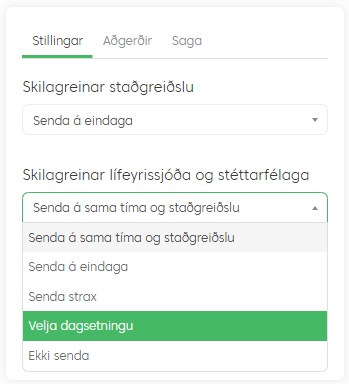
Returns can be sent easily, and this is configured under the Settings tab in the payroll run. There you can choose whether they are:
sent on the due date,
sent immediately,
sent on a specific date, or
not sent.
More details about pension payments in the article What about payments to pension and supplementary pension funds?
Payslips#
You can access payslips in Payday at any time, and they correspond to standard payslips showing, among other things, salary, employer contribution, withholding tax, pension fund payments, and information on used personal tax credit. It is entirely your responsibility to ensure that information regarding bank account, union, and pension fund is correct.
You can add a default comment to all payslips under Stillingar > Fyrirtæki > Laun > Launaseðlar.
You can also register a default comment for a specific employee under Stillingar > Starfsmenn > Select employee > Laun > Launaseðlar. If a default comment is registered for a specific person, that person will not receive the comment that was registered for everyone.
History
Under History in the payroll run, you can see who created the payroll run and whether a payment batch was created
Incorrect payroll runs#
It is best to look at these instructions on how you can delete a payroll run, see here: How do I delete a payroll run?
Instructional video#
Below is an instructional video on how to perform a payroll run.