Send an invoice / create an invoice
Create an invoice step by step:#
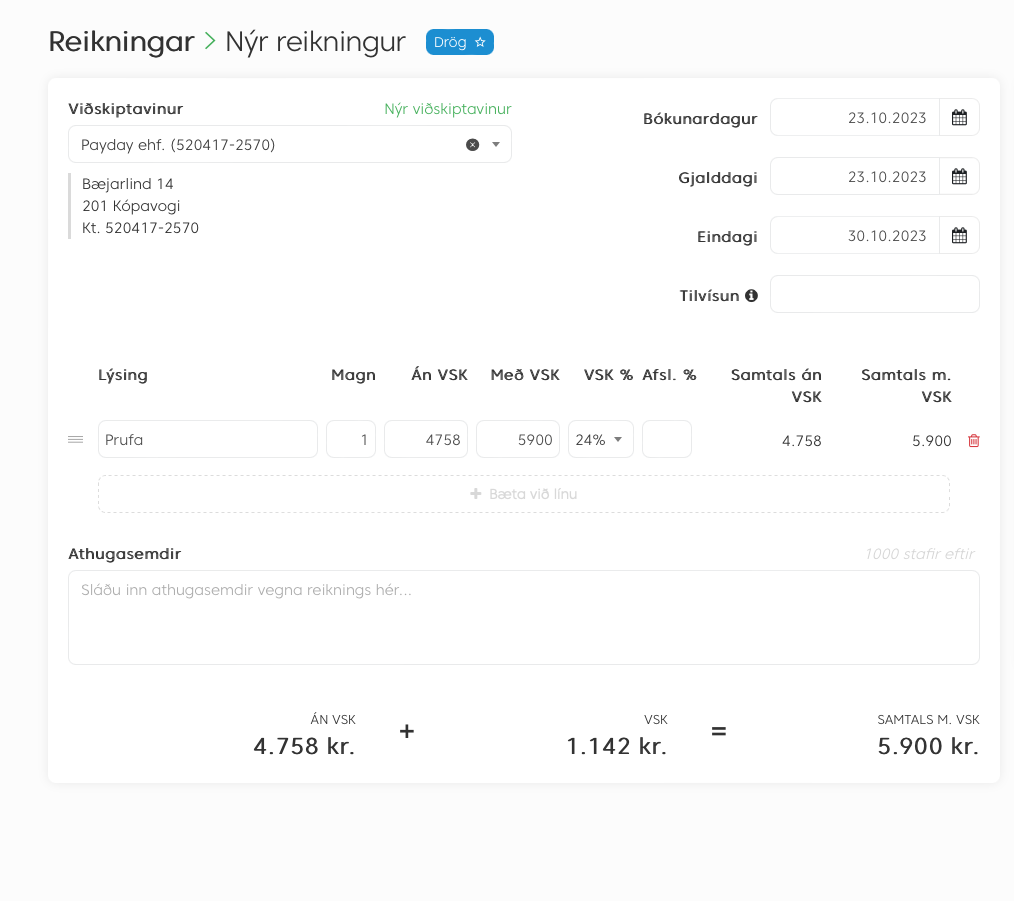
Click Sales > Invoices > New invoice.
Select a customer or click New customer.
Write a description or select a product.
Enter the quantity and the amount with or without VAT, and select the VAT rate.
Add more lines with Add line.
Select the posting date, due date and final due date.
Add a reference if you want, e.g. a job number.
When everything is ready, click Create invoice.
Invoice settings#
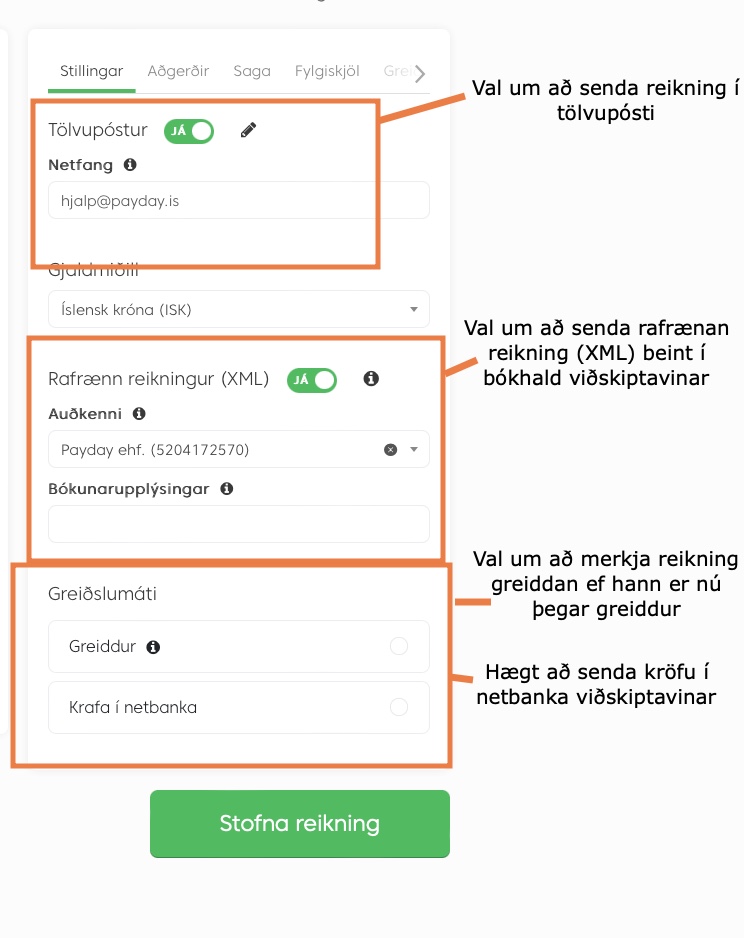
Email: Choose whether the invoice is sent by email, and to which address. To change the email text and subject line, see Change the email for invoices
Currency: See Invoices in foreign currencies
Electronic invoice (XML): The invoice goes straight into the customer's accounting system. See: Electronic invoices (XML)
Paid: Tick this if the invoice has already been paid.
Claim in online bank: Creates a claim in the customer's online bank. For this to work, your bank must be connected to Payday under Settings > Company > Bank. See more: Bank connection and claim creation.
Actions:#
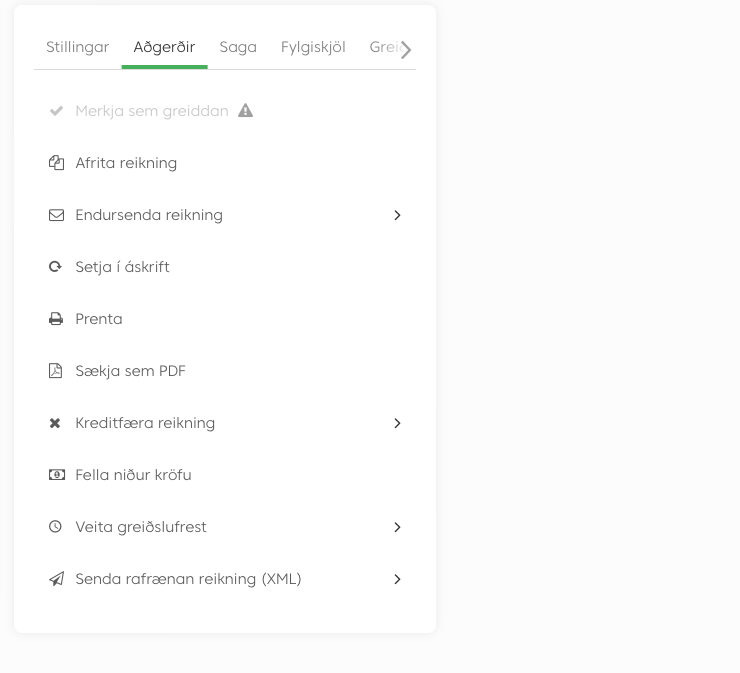
Once an invoice has been created, you can click Actions.
There you'll find buttons to, for example, print the invoice, resend it by email or download it as a PDF.
You can also grant a payment extension, create a claim and send an electronic invoice (if that wasn't done before).
If an invoice was incorrect, you need to credit it. See: Credit an invoice