Connecting a custom payment method from Shopify POS to a ledger account in the Payday Shopify app
About this article#
This article is intended to assist you in connecting a custom payment method (Custom Payment Type) from Shopify POS to a ledger account in the Payday Shopify app.
Prerequisites#
- If you do not have the Payday Shopify app installed, you can follow this help article to set up the integration with Shopify: Integration with Shopify
- Have the Shopify Point of Sale (POS) app installed on a smartphone or tablet.
How to create a custom payment method (Custom Payment Type) in Shopify POS#
Whether you already have a custom payment method or not, it is good to go through the process together.
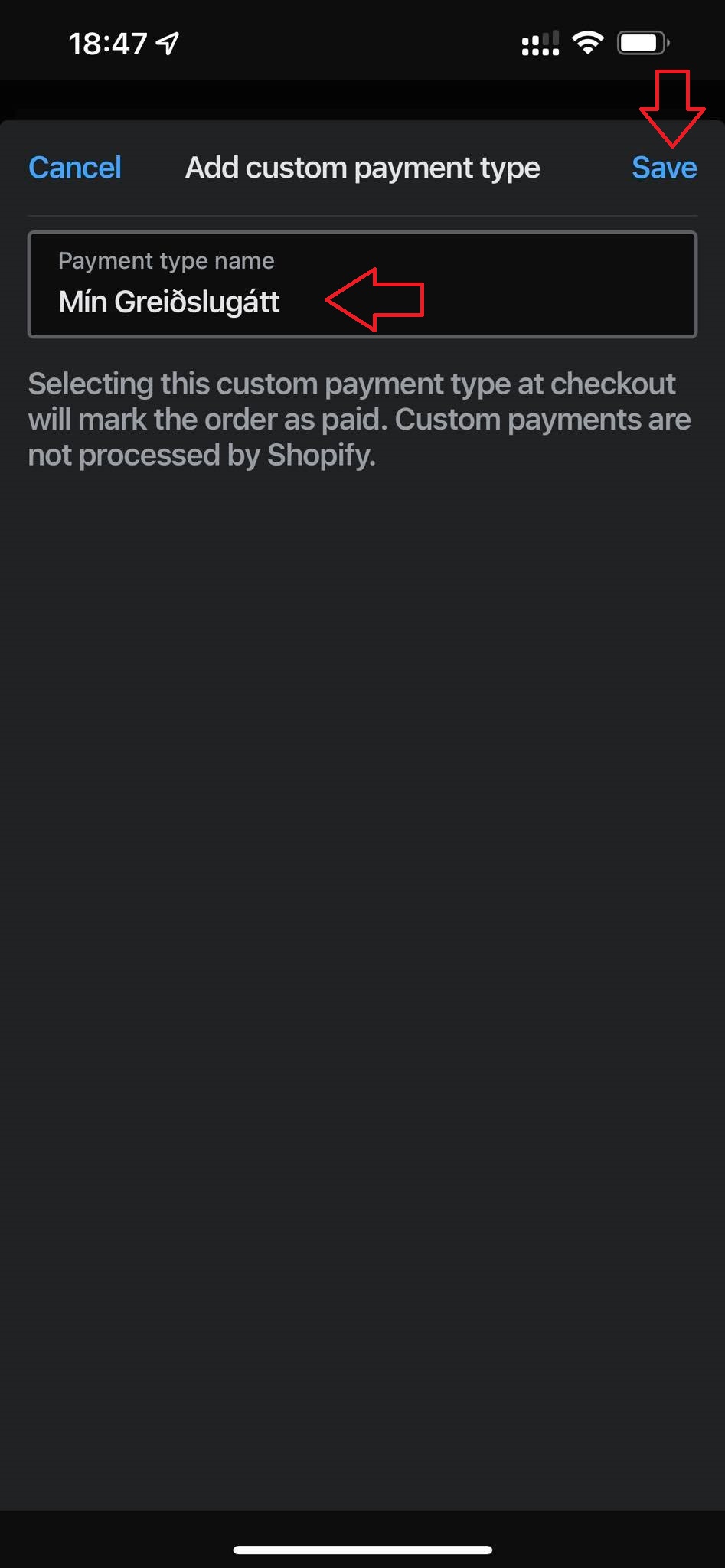
In Shopify, click on Settings, then select Payment types, and finally select Add custom payment type.
Give your custom payment method a descriptive name that will appear to employees in the Checkout window when completing a sale.
You need to keep track of this name for further setup.
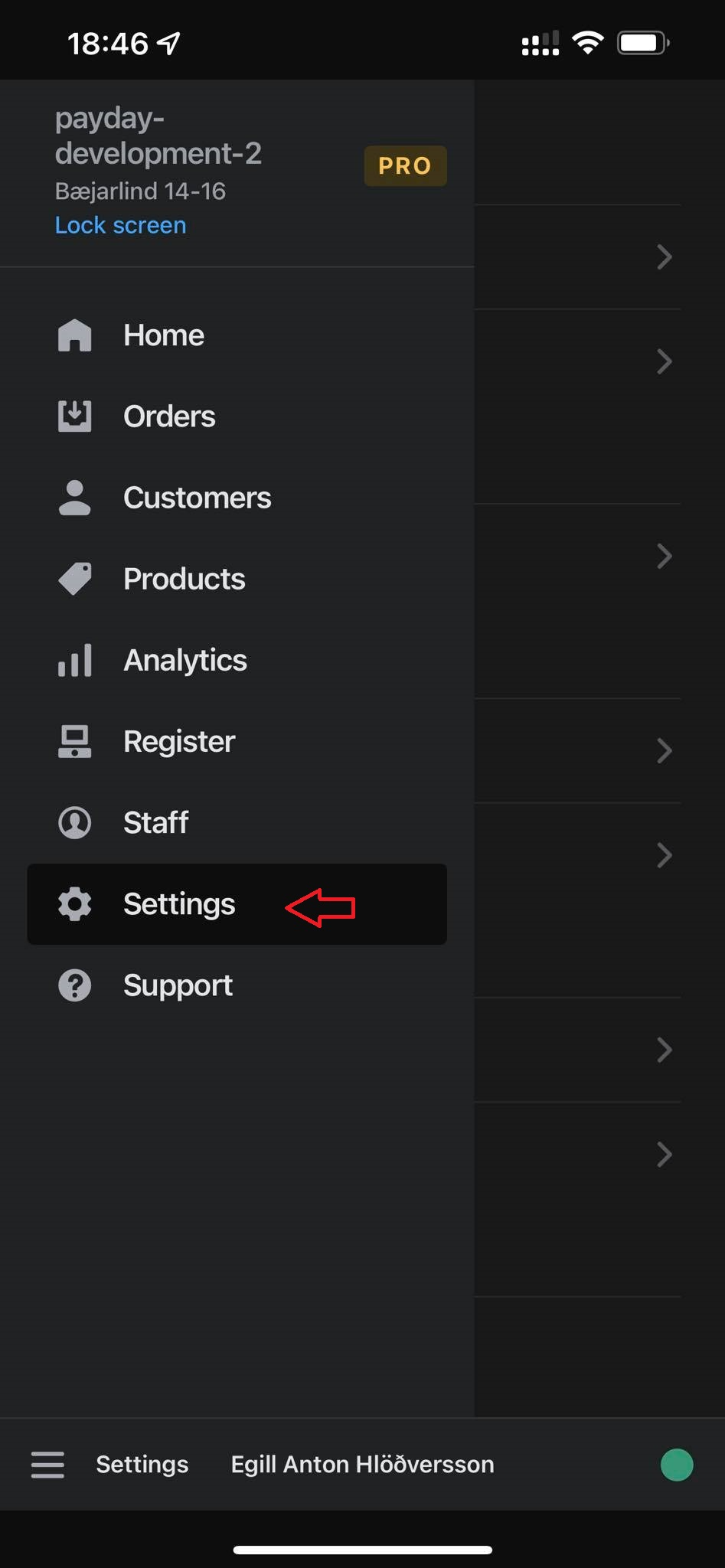 | 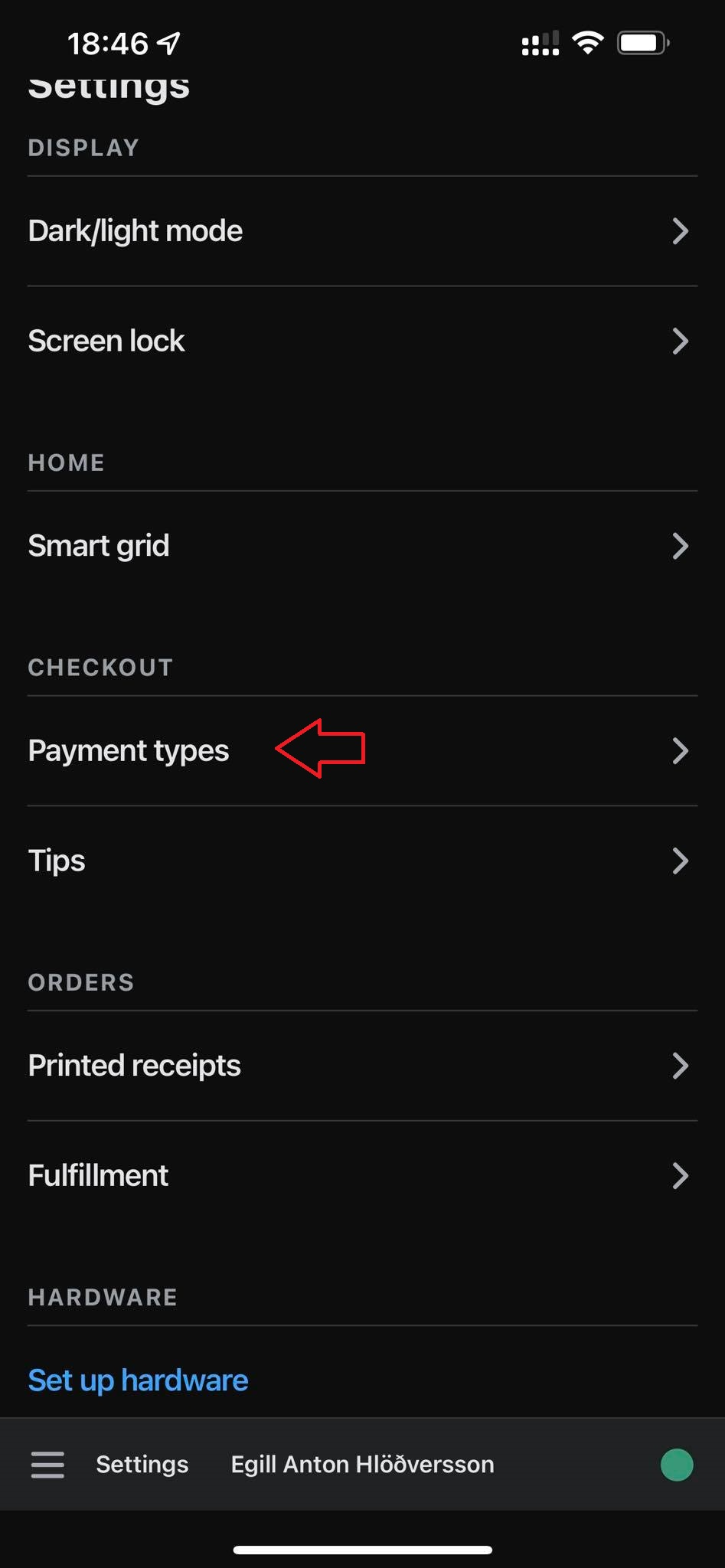 | 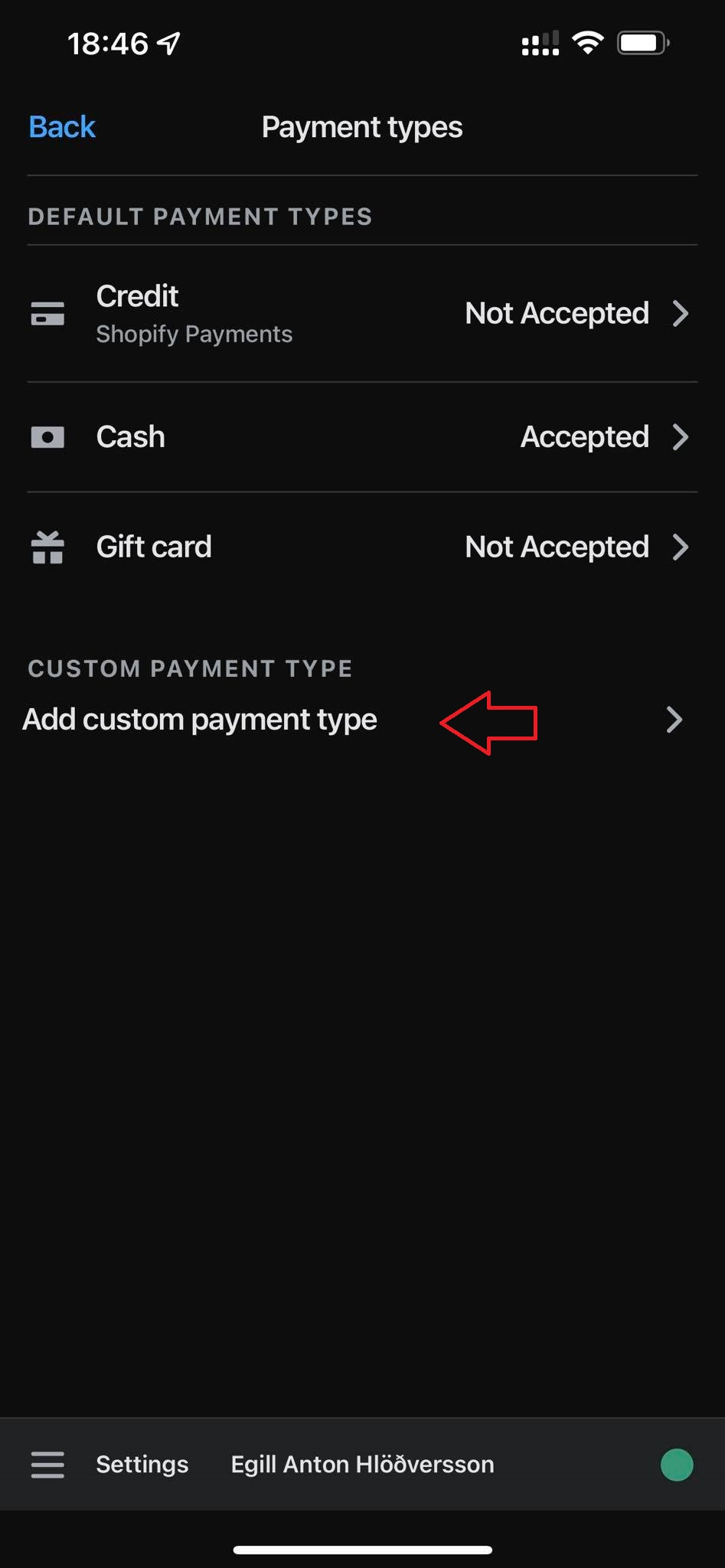 |  |
How to connect a custom payment method (Custom Payment Type) from Shopify POS to a ledger account in the Payday Shopify app#
When you open the Payday Shopify app (assuming you are already logged in), you will see a list of the ledger accounts you have set up in Payday.
If you do not see a list, we recommend reading the help article Integration with Shopify
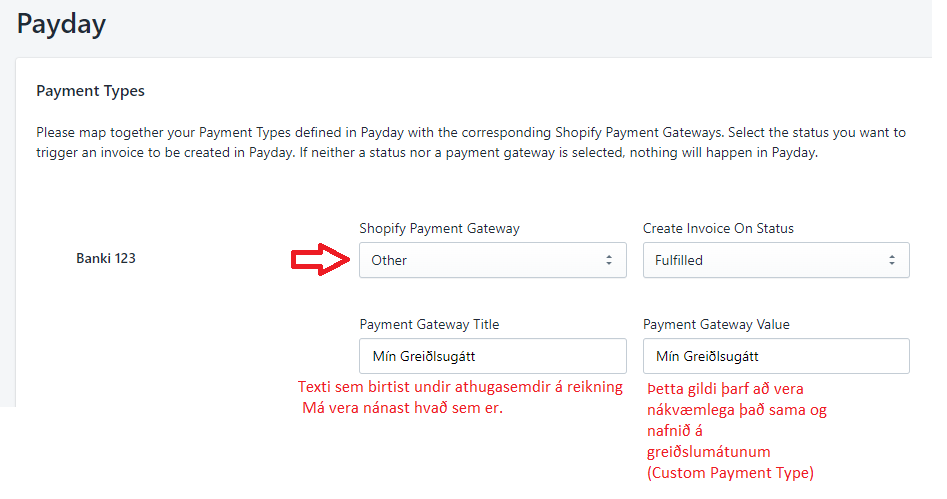
To connect a custom payment method to a ledger account, you need to select Other under Shopify Payment Gateway.
Then, you need to enter the name of the custom payment method under Payment Gateway Value. This value must be 100% identical to the name you previously gave your custom payment method. Pay close attention to lowercase and uppercase letters and whether there are any spaces.
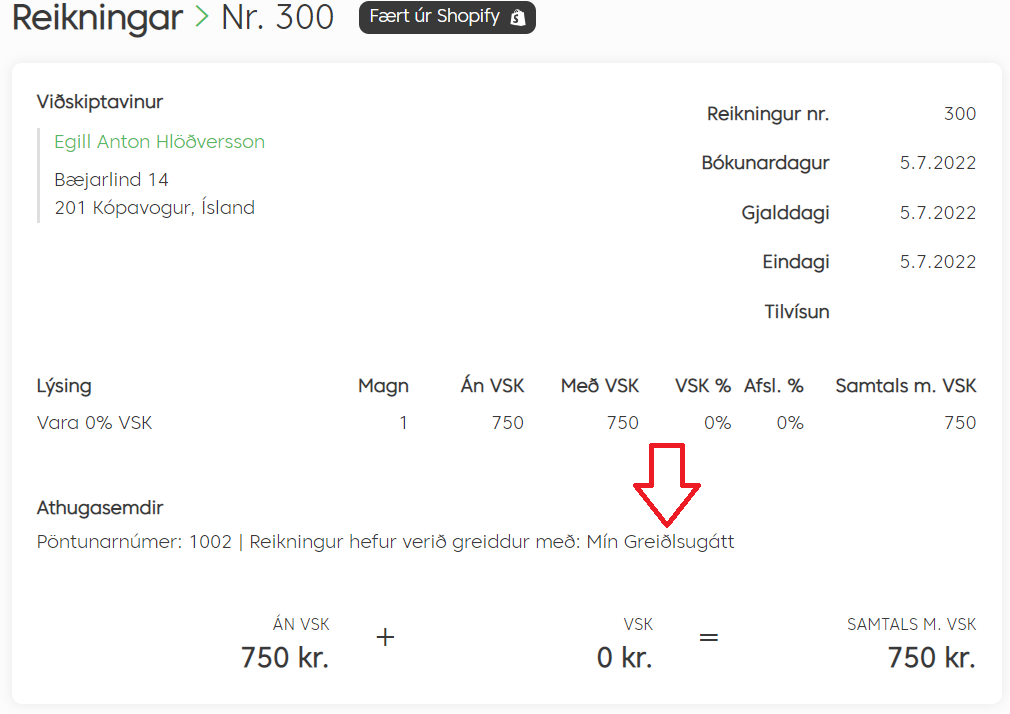
You also need to fill in the column Payment Gateway Title. This column determines what appears under Comments on invoices.
If you need further assistance, please contact us at hjalp@payday.is