
Close/delete account
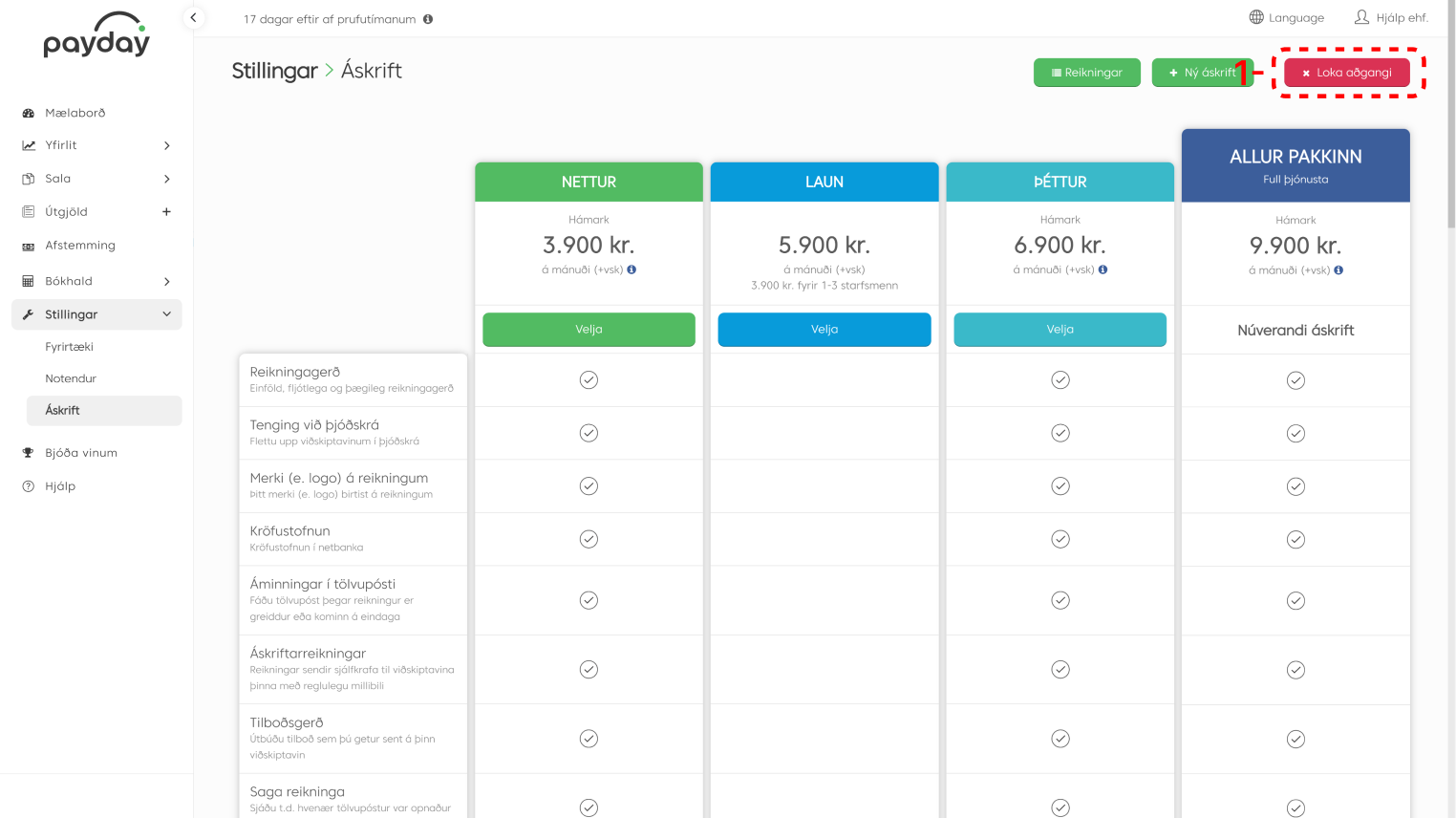
To close your account completely, you need to go to Settings > Subscription > New subscription.
There you need to click on close subscription
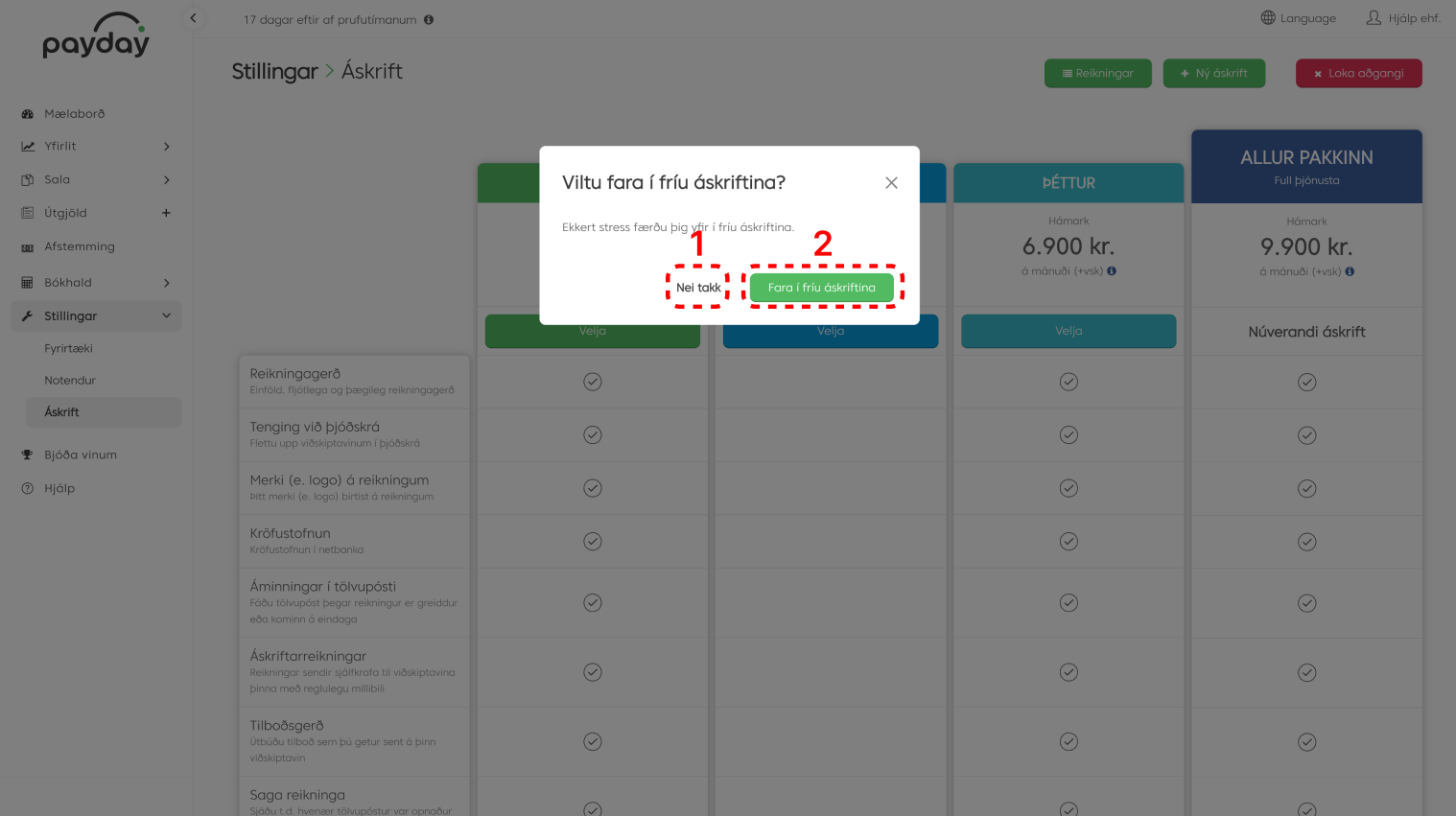
Then a window will pop up asking “Do you want to switch to the free subscription” where you click “No thanks”
Then another window will pop up. There you need to click “Close account” to proceed. If you click “Cancel” you will be taken back to the subscription page.
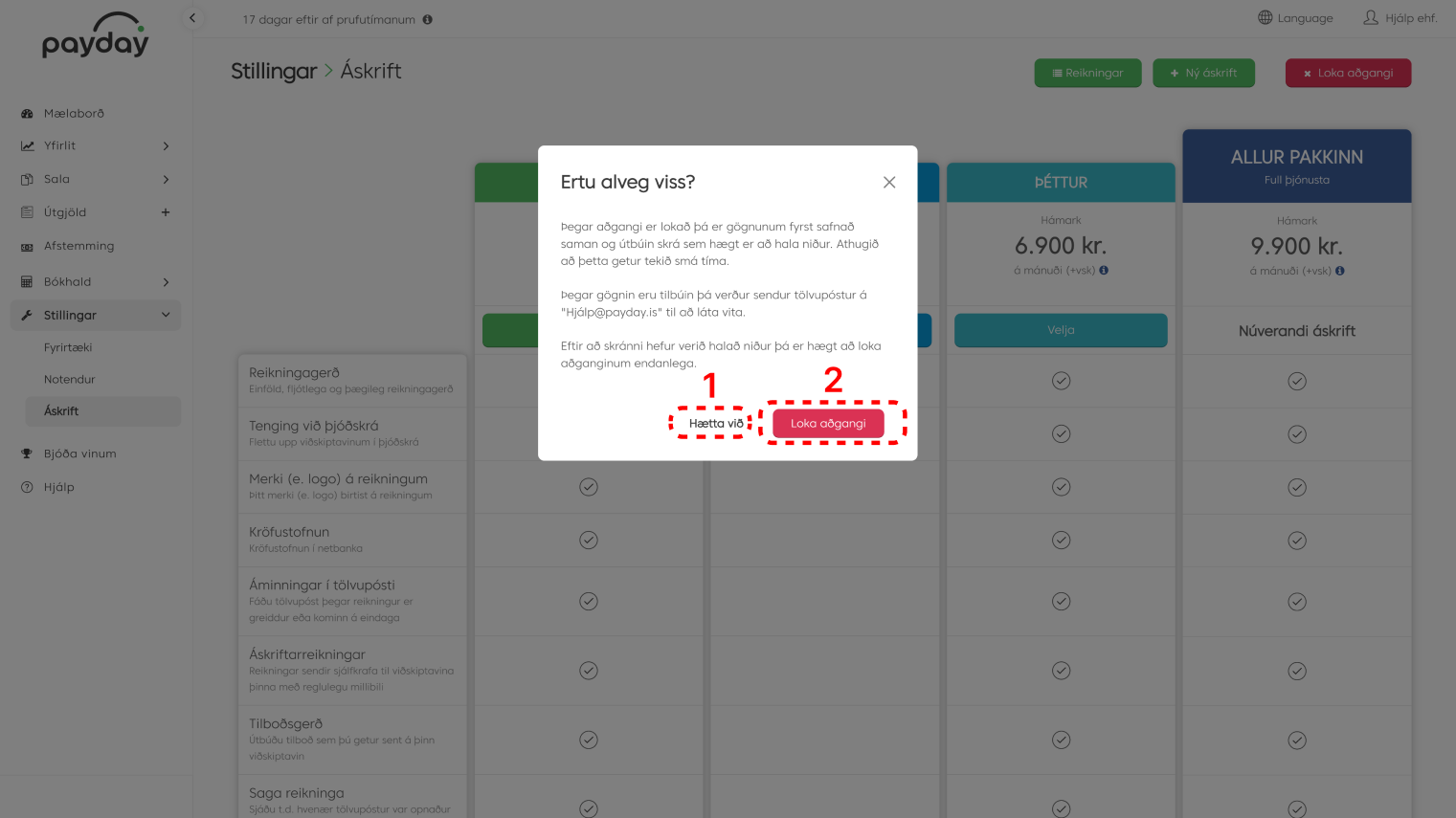
Once you have clicked “Close account” you will see this window.
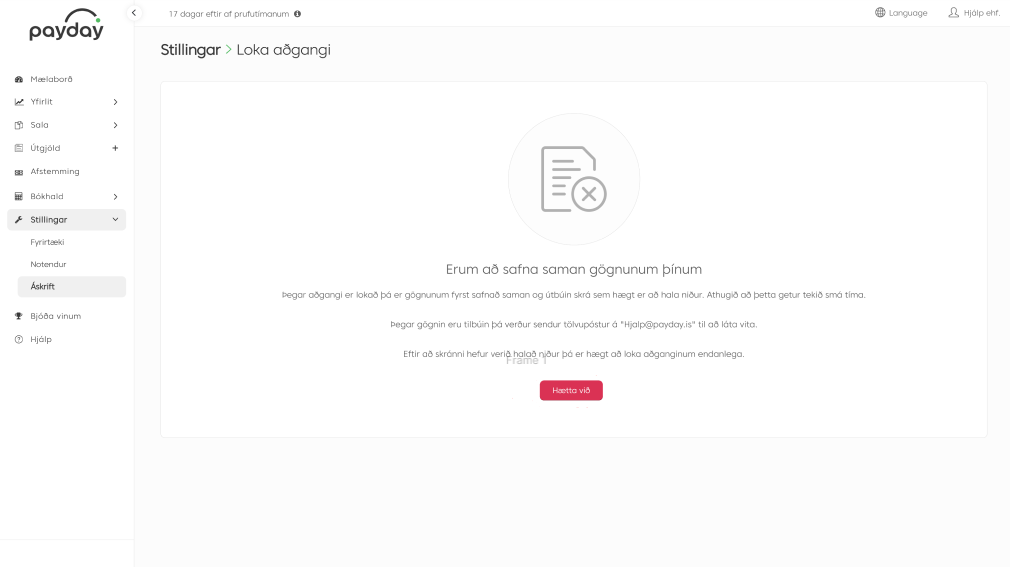
It can take some time to compile the data. But once it is ready, you will receive an email from us.
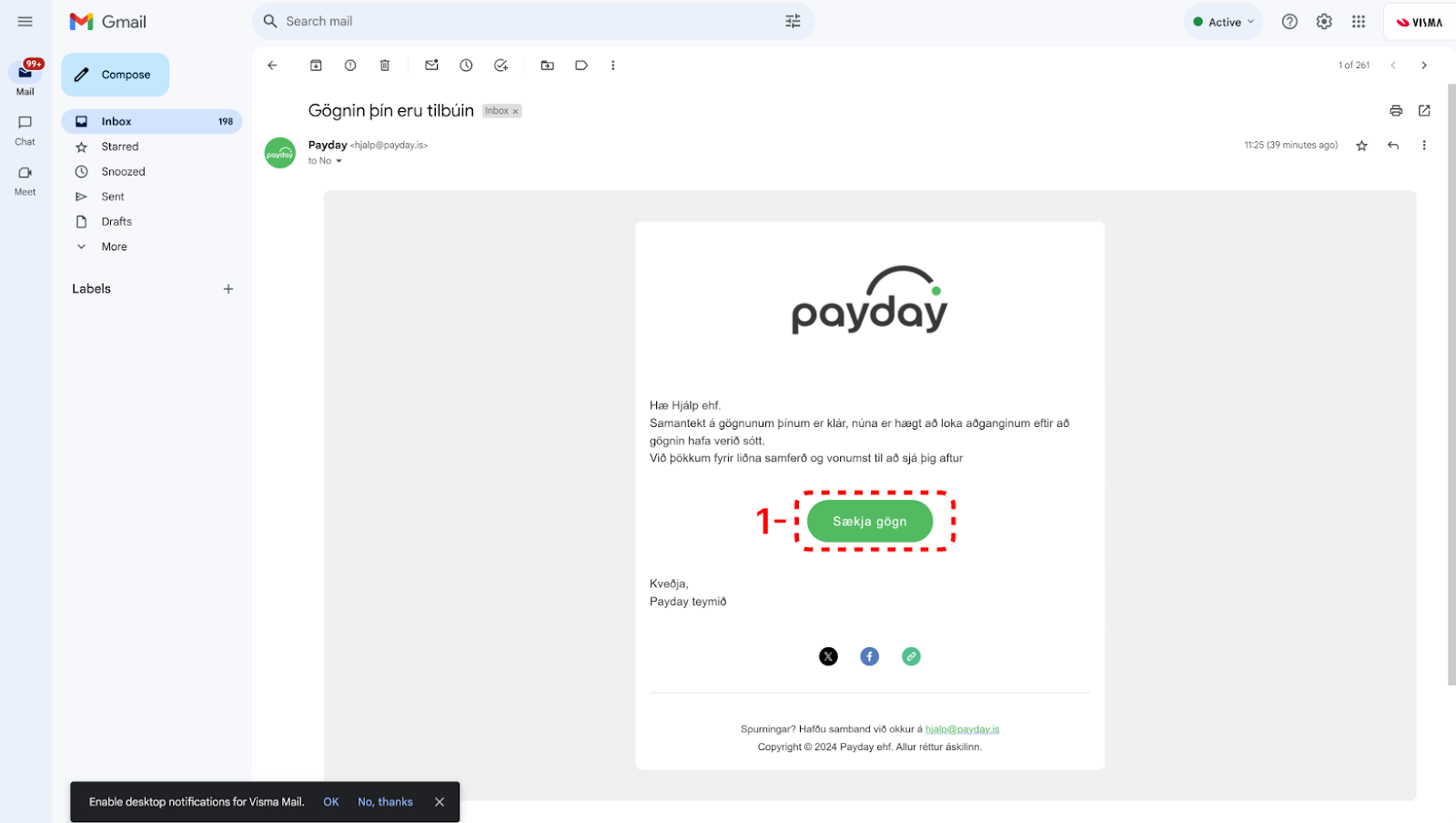
In the email you receive, you need to click “Download data”. This will open the window to close the account.
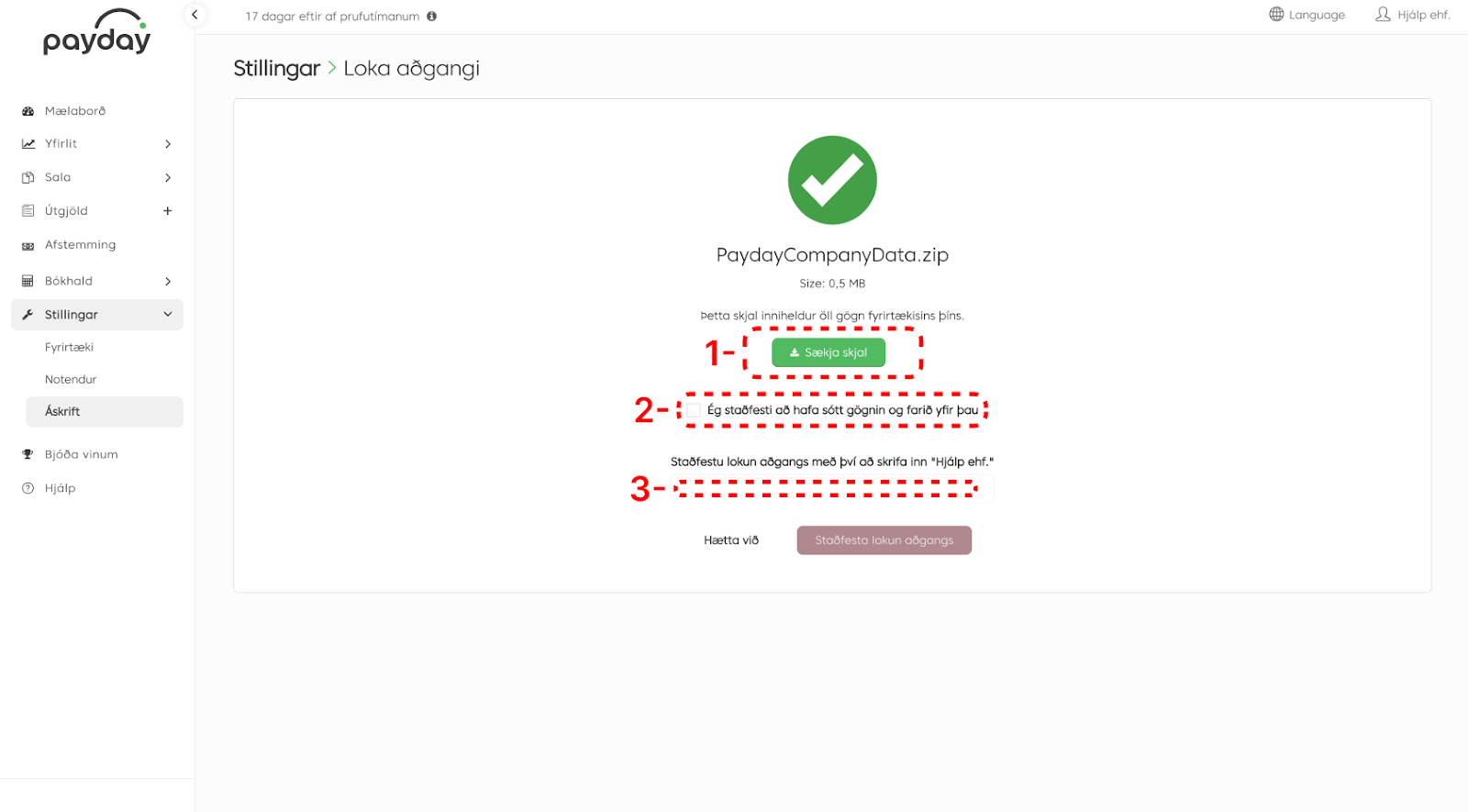
Here you need to:
1. Click “Download file”. You can see at the bottom of the page here what is included in the file.
2. You must check the box “I confirm that I have downloaded the data and reviewed it.”
3. Confirm the account closure by typing what is inside the quotation marks (Must be exactly the same). As shown in the example image here, you need to enter “Hjálp ehf.”
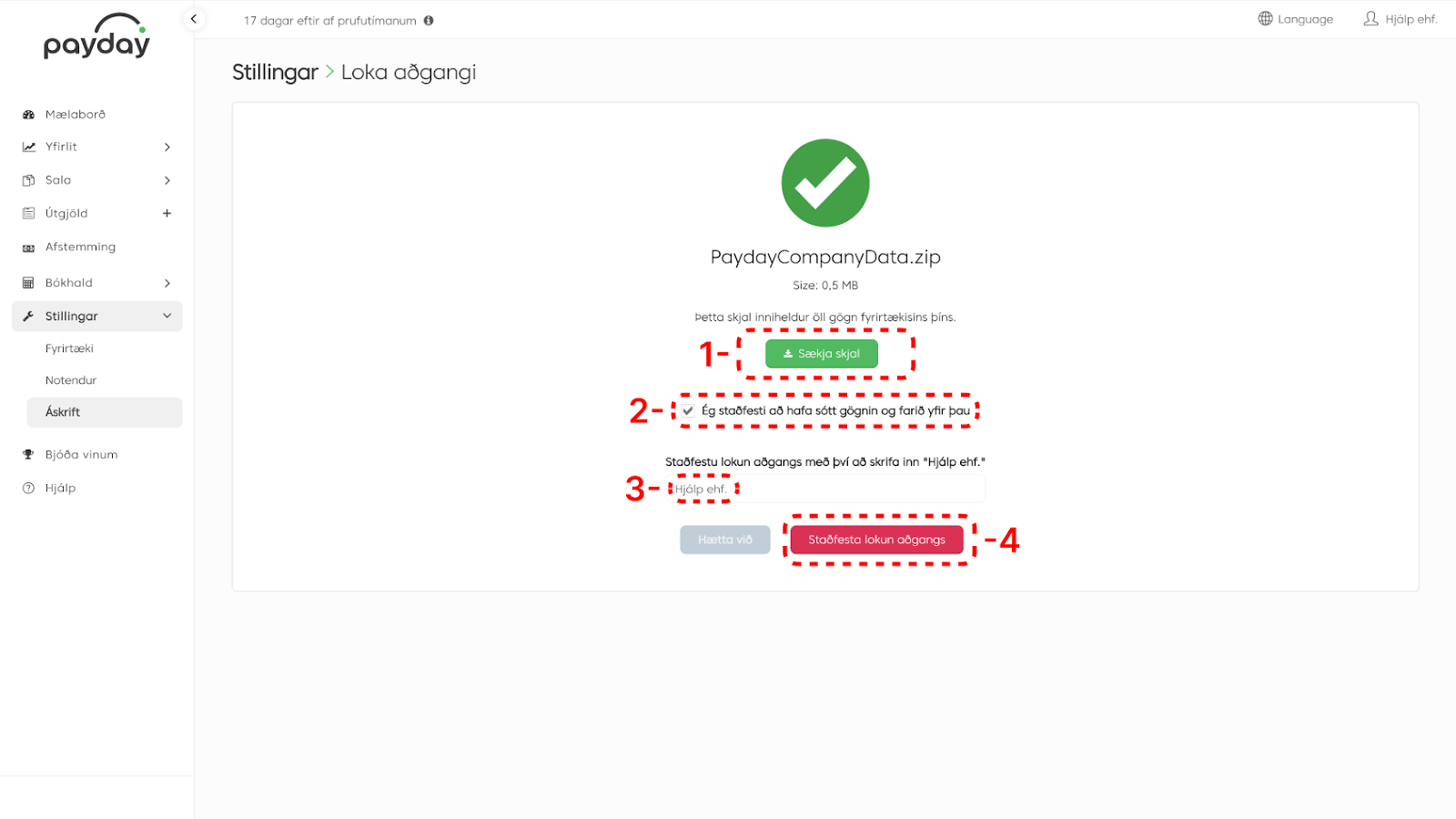
If you have followed all the steps above, you can click “Confirm account closure”.
Here you can see what the file contains:
- Sales
- Invoices
- Excel file with a list of invoices (which are not in draft)
- PDF for all invoices
- All attachments
- Sales orders
- Excel file with a list of sales orders (which are not in draft)
- PDF for all sales orders
- All attachments
- Quotes
- Excel file with a list of quotes (which are not in draft)
- PDF for all quotes
- All attachments
- Subscription invoices
- Excel file with a list of subscription invoices
- Products
- Excel file with a list of all products
- Customers
- Excel file with a list of customers
- Invoices
- Expenses
- Excel file with a list of expenses (which are not in draft)
- All attachments
- Payroll
- Excel file with payroll list per year
- Accounting
- Excel file with a list of accounts
- Excel file with a transaction list
- Accounting
- Excel file with a list of accounts
- Excel file with a transaction list
- Excel file with a list of suppliers
- All attachments for all entries